THE DUO JOURNAL · OCTOBER 24, 2026
Best teleprompter for iPhone Duo: what matters in 2026.
The best teleprompter for iPhone Duo should let you read comfortably while using the rear camera, keep your words close to the lens, and make recording feel straightforward. Start with that workflow—not the longest feature list.
The quick answer: choose for the way you record.
If you record scripted videos on your own, put rear-camera capture, lens-adjacent reading, a comfortable scroll, and an easy saved-take workflow at the top of your list. Teleprompter Duo brings those tasks together: prepare a script, rehearse it, record with the supported Duo reading surface, then review and refine the take.
If you work with a director, prioritize the controls available on the other display. If interviews or simultaneous front-and-rear capture define your videos, compare those specific features in the alternatives’ current documentation. No single checklist makes one app best for every creator.
Six things to check in an iPhone Duo teleprompter.
1. Can you read while the rear camera records?
“Works on iPhone” does not tell you how an app uses Duo’s displays. Look for an explicit rear-camera and performer-facing reading workflow. Check where the script appears, how you see your framing, and which controls remain reachable. For our setup, see reading a script while recording with the rear camera.
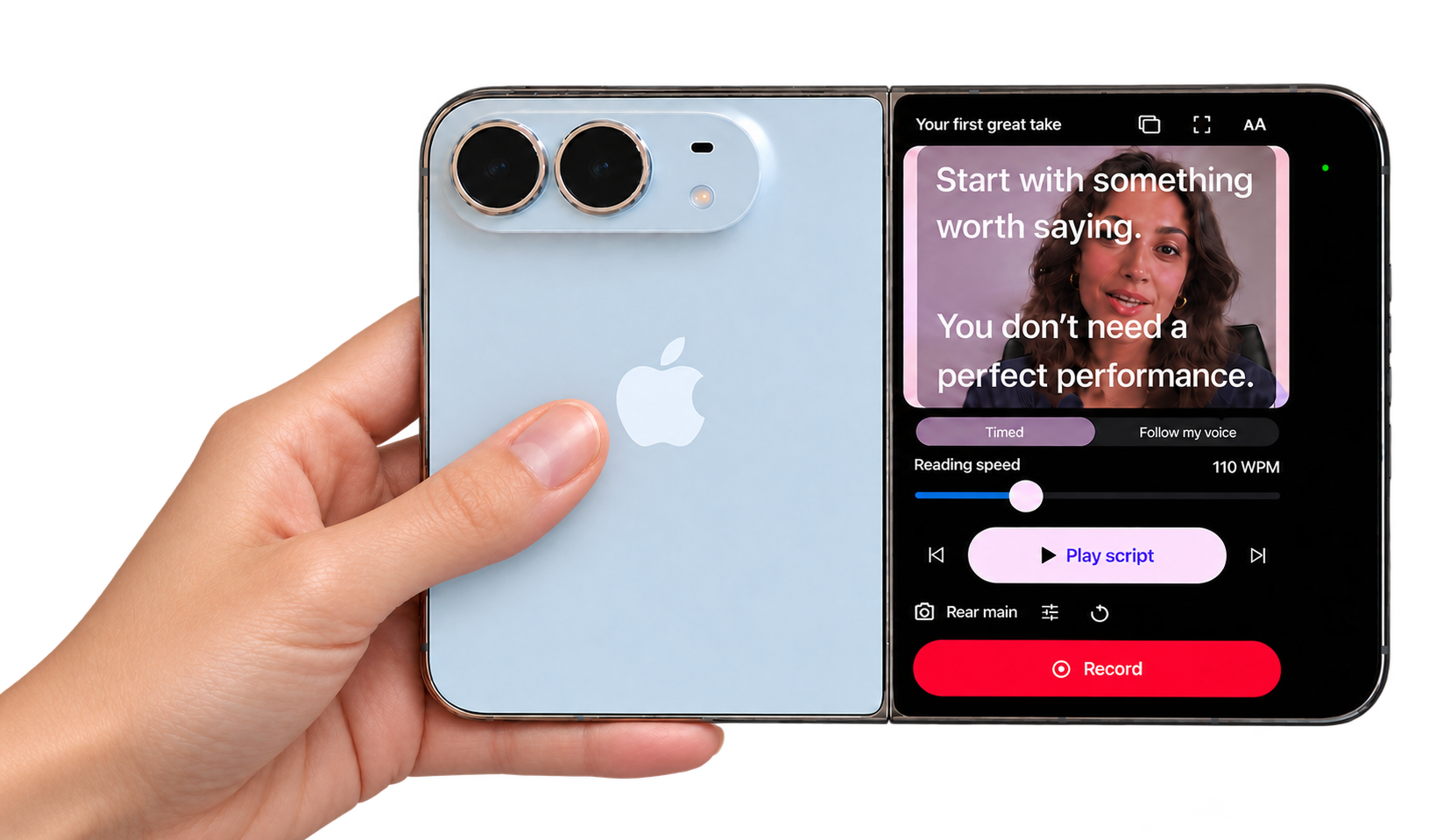
2. Where do your eyes go?
In the camera-above-reader pose, the script should stay close to the lens. A readable, narrow column can reduce sideways eye travel. Camera position, viewing distance, and text size still affect the result. No app layout guarantees that every reading movement disappears. Our teleprompter eye-contact guide explains what to adjust.
3. Does the scroll suit your delivery?
A predictable words-per-minute setting is useful for rehearsal and planned delivery. Voice following can help when your pace varies, but check language support and what happens during pauses. Teleprompter Duo includes timed scrolling; Pro adds voice following using supported on-device recognition. Try the website reading demo to explore different speeds.
Not sure where to set the slider? Learn how to measure a natural reading pace, then compare a short recorded take.
4. Can you finish the video without rebuilding your workflow?
Think beyond the record button. Can you find the exact saved take, review it, trim its opening, and export it where you need it? If you regularly add captions or shorten pauses, compare whether those tools are included and whether they preserve your original recording. Teleprompter Duo keeps originals and offers nondestructive trim; Pro adds caption correction, quiet-pause removal, speed adjustment, and crop options.
5. What does “free” include?
Check recording, export access, watermarks, and editing separately. A free download does not describe every export condition. In Teleprompter Duo, Free includes scripts, rehearsal, recording, trim, and unlimited watermarked exports. Pro removes the export watermark and adds advanced tools. See the Free vs Pro guide before choosing.
6. What happens to your content?
Ask where scripts, audio, and video are processed, whether an account is required, and whether speech recognition runs on device. Teleprompter Duo stores its library locally, does not require an account, and uses on-device speech support where available. Export destinations and device backup settings have their own policies. Read our privacy policy for the full details.
Duo teleprompter options to consider.
These are selected options with documented Duo workflows, not an exhaustive list or a scored ranking. The table describes each product’s published emphasis; it does not imply that unlisted features are absent.
| App | Documented Duo workflow | What to evaluate for your setup |
|---|---|---|
| Teleprompter Duo | Rear-main recording with a performer-facing script and preview on supported Duo configurations. | Solo script-to-take flow, local library, Free exports with a watermark, and optional Pro finishing tools. |
| Teleprompter.com | Director Mode puts the script near the rear camera and offers controls on the inner display. | Director-assisted recording, solo and tabletop workflows, and the published color-cue controls. |
| Teleprompter Pro | Duo Script displays the script on the outer screen while using rear cameras. | Its dedicated outer script interface and documented inner/outer recording controls. |
| StoryMic | Its Duo page describes rear-camera filming with the script on the back screen. | Its published voice-following, interview, dual-camera, and in-app editing workflows. |
Sources: Teleprompter.com Director Mode, Teleprompter Pro Duo Script guide, and StoryMic’s official product page. Features and availability can change. Consult each app’s current listing for plans and device requirements.
When Teleprompter Duo fits your workflow.
Choose Teleprompter Duo when you want a focused path from your script to your saved video: write or import, rehearse at your pace, record with your words near the lens, and review the result in the same app. The camera-above, script-below setup makes the core idea easy to understand: your phone captures the picture while your words stay in view.
Free gives you the essentials to build that habit. Pro adds tools for polishing videos you plan to share: watermark-free output, supported on-device voice following, editable captions, quiet-pause removal, speed adjustment, brand presets, and video crops. The current purchase terms appear in the app.
If your priority is a capability not described in our feature overview, verify it before deciding. A buying guide should help you find your fit, not turn every workflow into a reason to buy.
A short test tells you more than a feature list.
- Write a short paragraph you would actually say to your audience.
- Secure Duo at eye level, with the rear camera above the reading screen for this pose.
- Choose comfortable text and speed. Check the selected camera and microphone.
- Record 20 to 30 seconds with your normal lighting and speaking distance.
- Review the saved take for eye travel, sound, framing, and pacing.
- Export once. Check the watermark, aspect ratio, and final file before committing to a workflow.
For the full process, follow our iPhone Duo teleprompter setup guide. A confident delivery starts with a setup you have made your own.
Questions before you choose.
Does iPhone Duo need a separate teleprompter device?
For the supported Teleprompter Duo workflow, your script appears on the phone’s reading surface; a separate prompting display is not required. A secure phone support can still make framing more consistent. A glass teleprompter is a different physical setup and may suit other cameras or recording needs.
Does “best” mean the app with the most features?
No. Choose the app that makes your actual recording process easier. Rear-camera reading, stable controls, comfortable text, and usable exports may matter more than tools you never use.
Can every iPhone Duo teleprompter record 4K at 60 fps?
Do not assume that. In Teleprompter Duo, available formats depend on the selected camera and device. The app offers supported HD/4K and 30/60 fps choices, rather than promising every combination on every lens.